How to Create and Verify Your Google Business Profile: A Complete Beginner's Guide
Whether you own a restaurant, salon, clinic, gym, retail shop, hotel, coaching centre, or any other local business, one of the first places customers look for you is Google.
When people search for businesses nearby, your Google Business Profile helps them find your location, contact details, opening hours, customer reviews, photos, and much more.
If you've never created one before, don't worry.
This guide walks you through the complete process, from creating your profile to getting it verified.
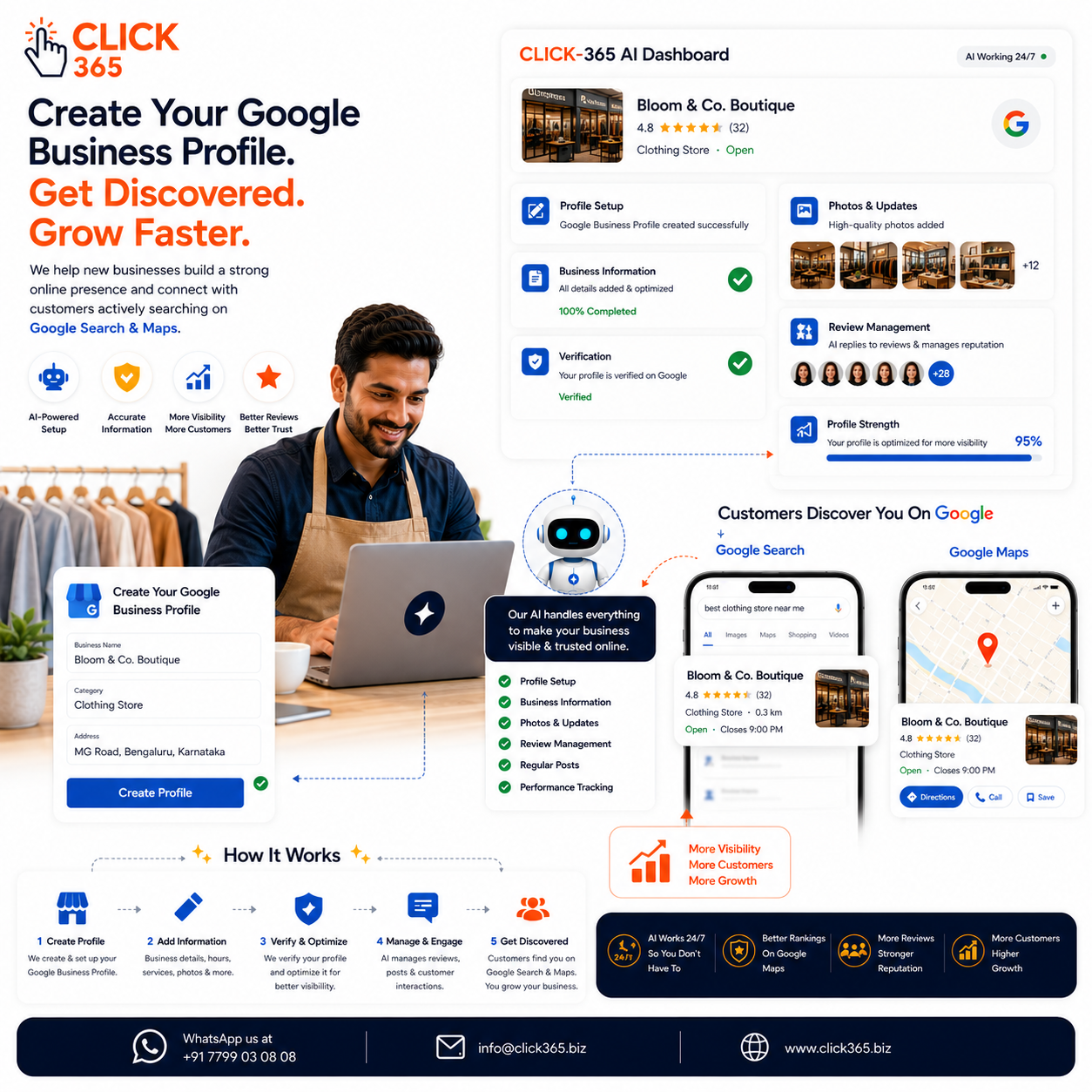
Why Every Local Business Needs a Google Business Profile
A Google Business Profile helps customers:
- Find your business on Google Search and Google Maps
- View your contact information
- Get directions
- Read customer reviews
- Check your opening hours
- Browse photos of your business
- Learn about your products or services
For many customers, this is their first impression of your business.
Let's get started.
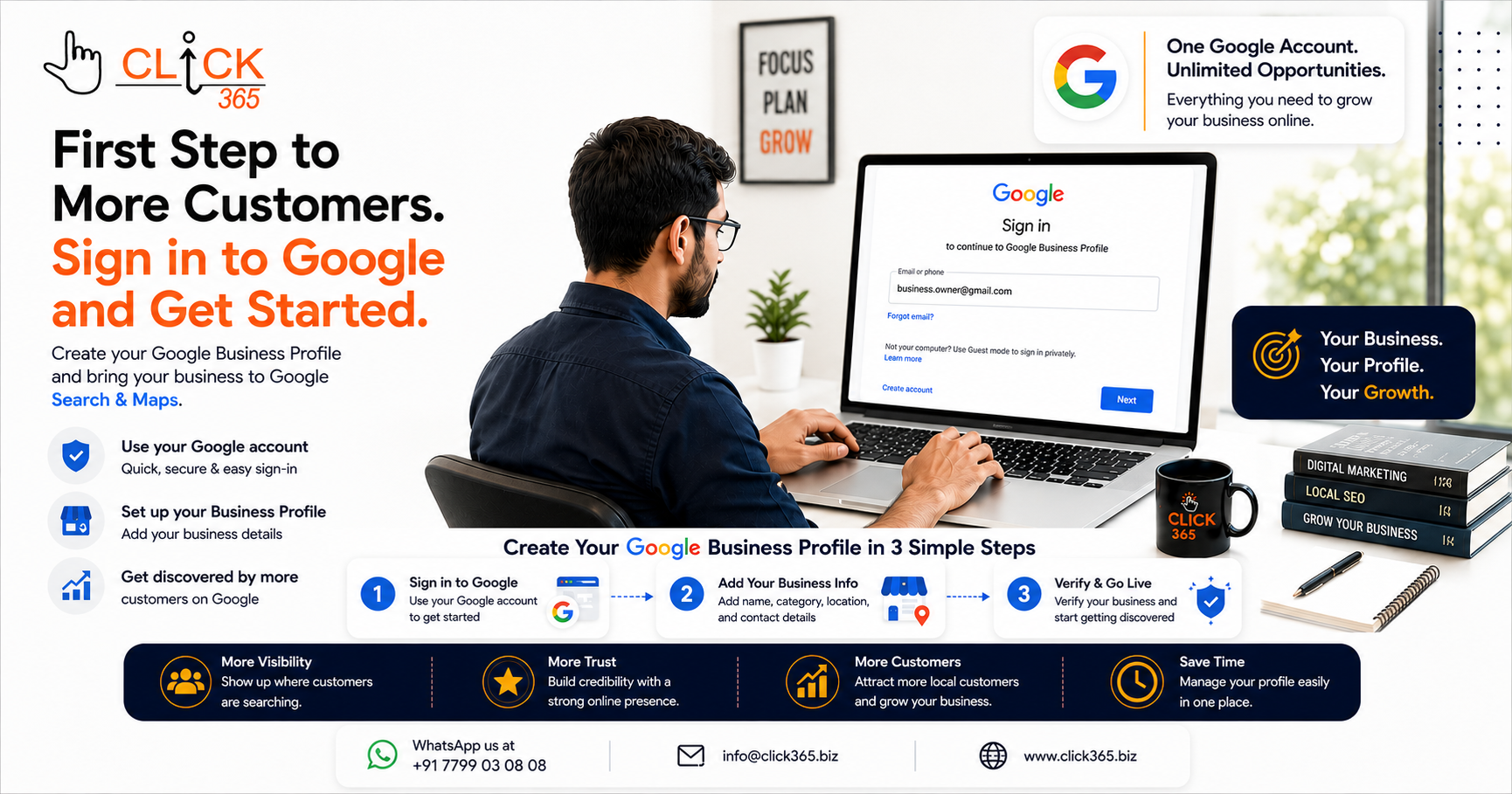
Step 1: Sign In with Your Google Account
Visit the Google Business Profile setup page and sign in using your Google account.
If you don't already have a Google account for your business, create one first. It's generally a good idea to use an account that you'll continue using to manage your business in the future.
Using one dedicated business account makes managing your profile easier over time.
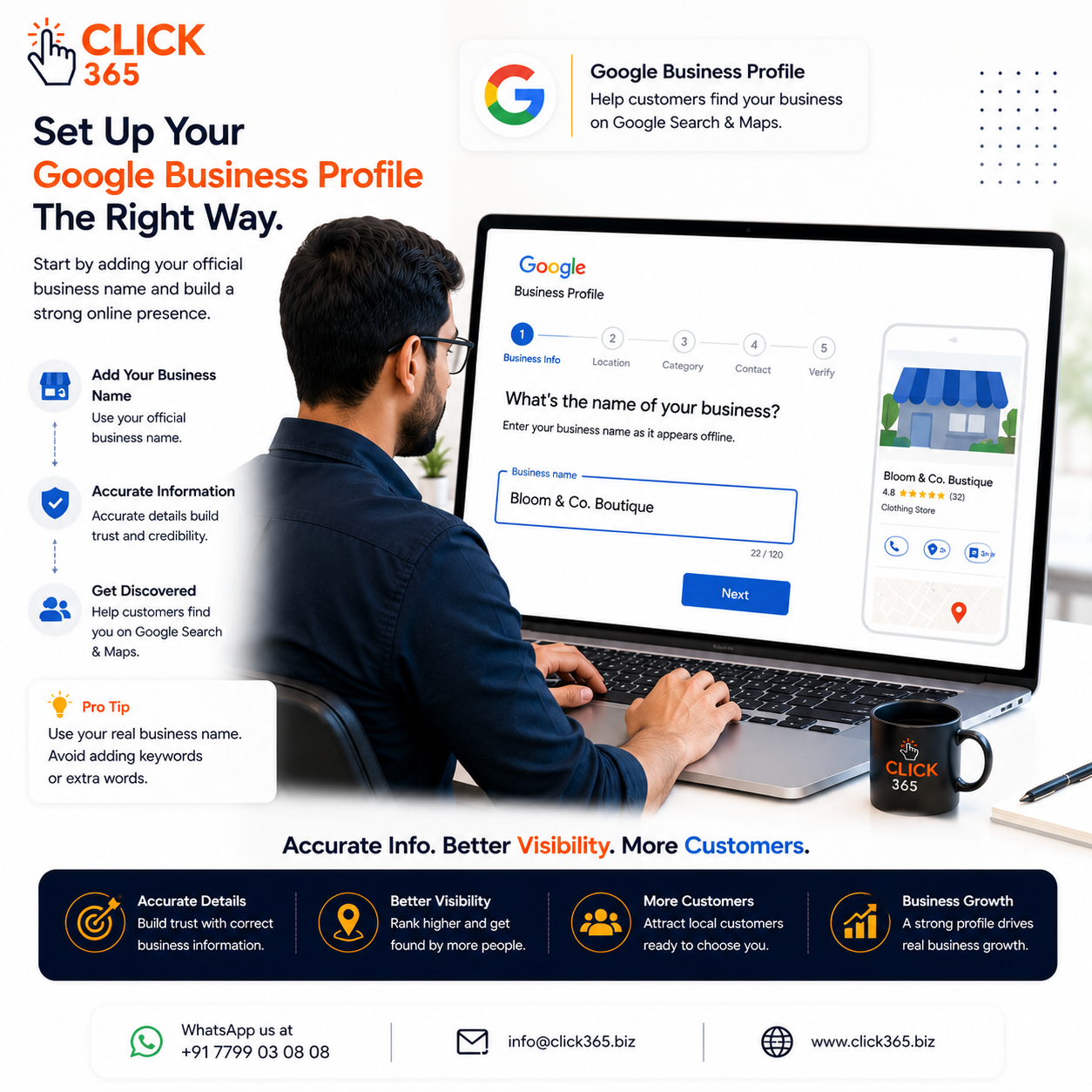
Step 2: Enter Your Business Name
Type your business name exactly as customers know it.
Avoid adding unnecessary keywords or promotional phrases.
For example:
✅ Sharma Family Restaurant
❌ Sharma Family Restaurant | Best Biryani | Top Restaurant Hyderabad
Using your actual business name helps maintain consistency across your online presence.
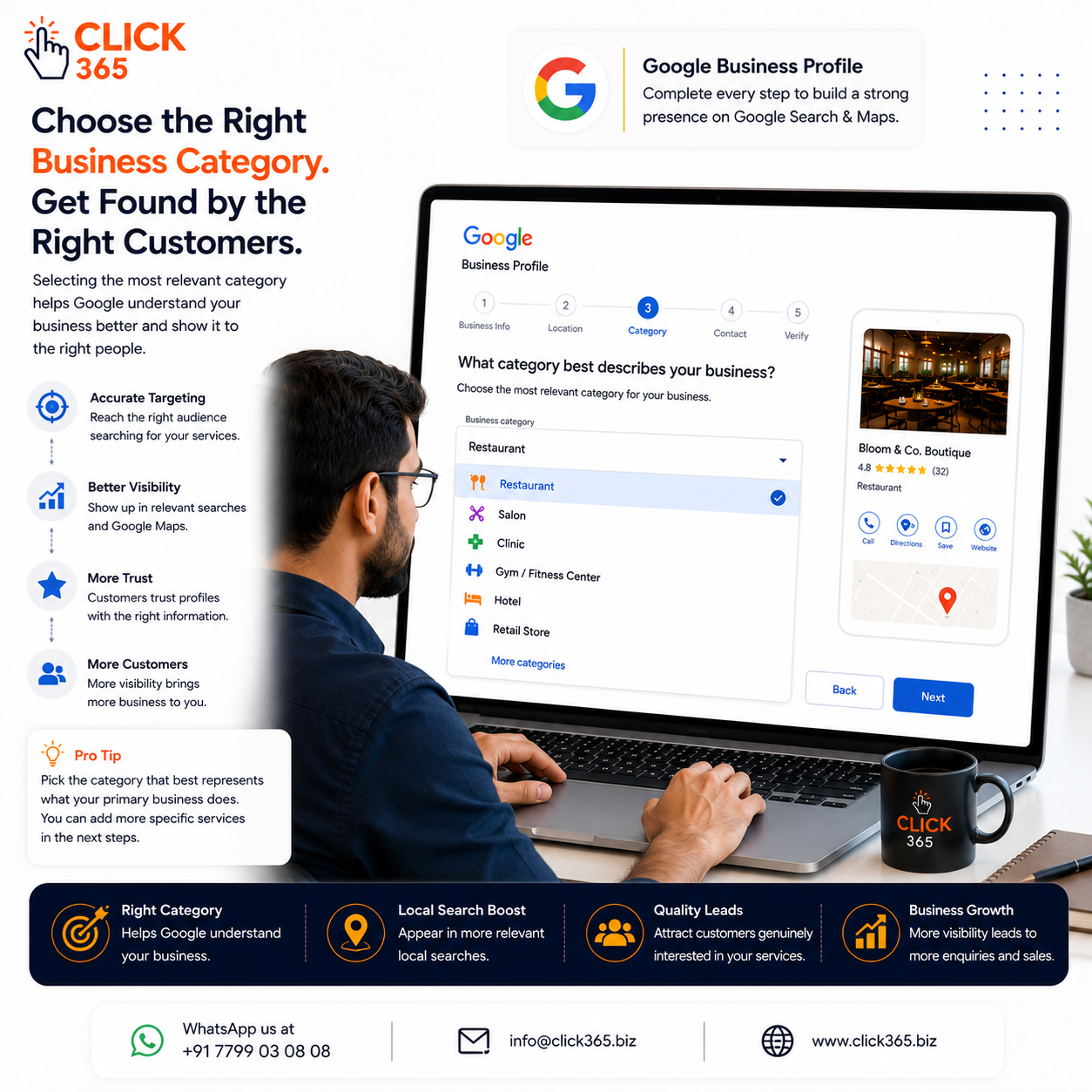
Step 3: Choose the Right Business Category
Your primary business category tells Google what your business does.
Choose the category that best represents your main service.
For example:
- Restaurant
- Beauty Salon
- Dental Clinic
- Gym
- Hotel
- Auto Repair Shop
Selecting the most accurate category helps customers discover your business when searching for relevant services.
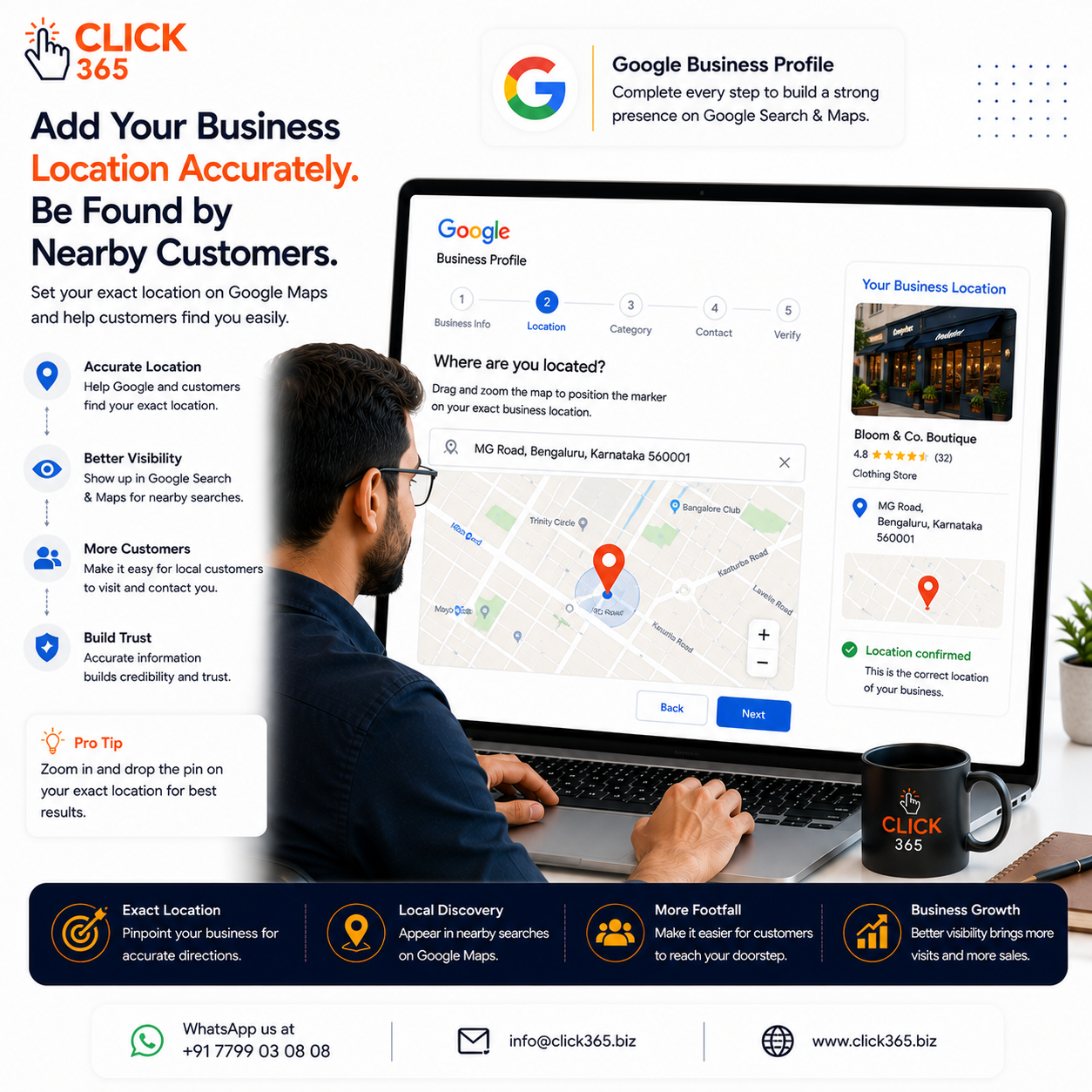
Step 4: Add Your Business Location
If customers visit your business in person, enter your complete business address accurately.
Double-check:
- Building name
- Street name
- Area
- City
- Postal code
An accurate address helps customers find your business more easily on Google Maps.
If you serve customers at their location instead of your own, you can configure the appropriate service areas during setup.
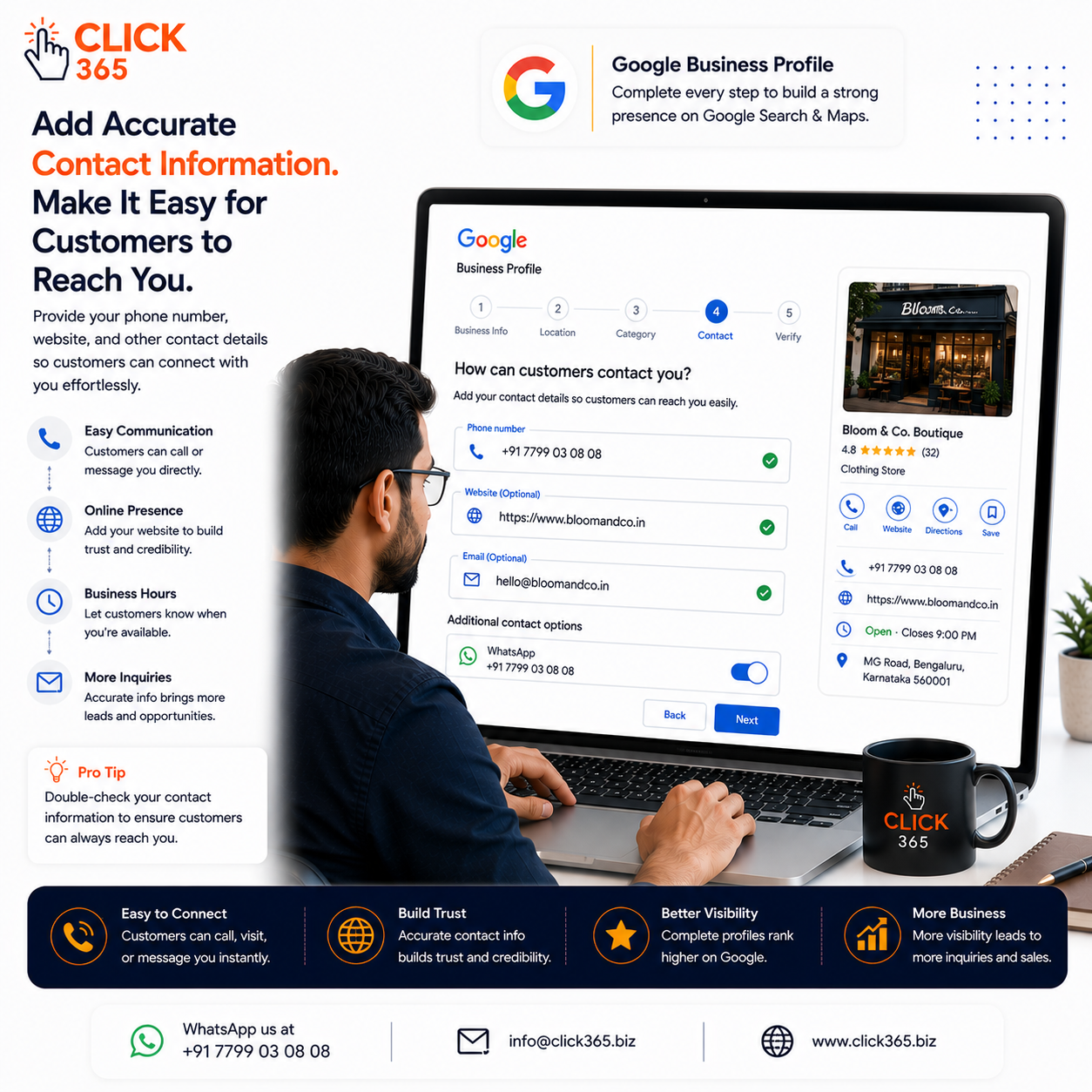
Step 5: Add Your Contact Information
Next, provide the information customers will use to reach you.
This may include:
- Business phone number
- Website (if available)
- Additional contact details where applicable
Make sure everything is accurate and up to date.
Incorrect contact information can lead to missed customer enquiries and a poor first impression.
Step 6: Verify Your Business
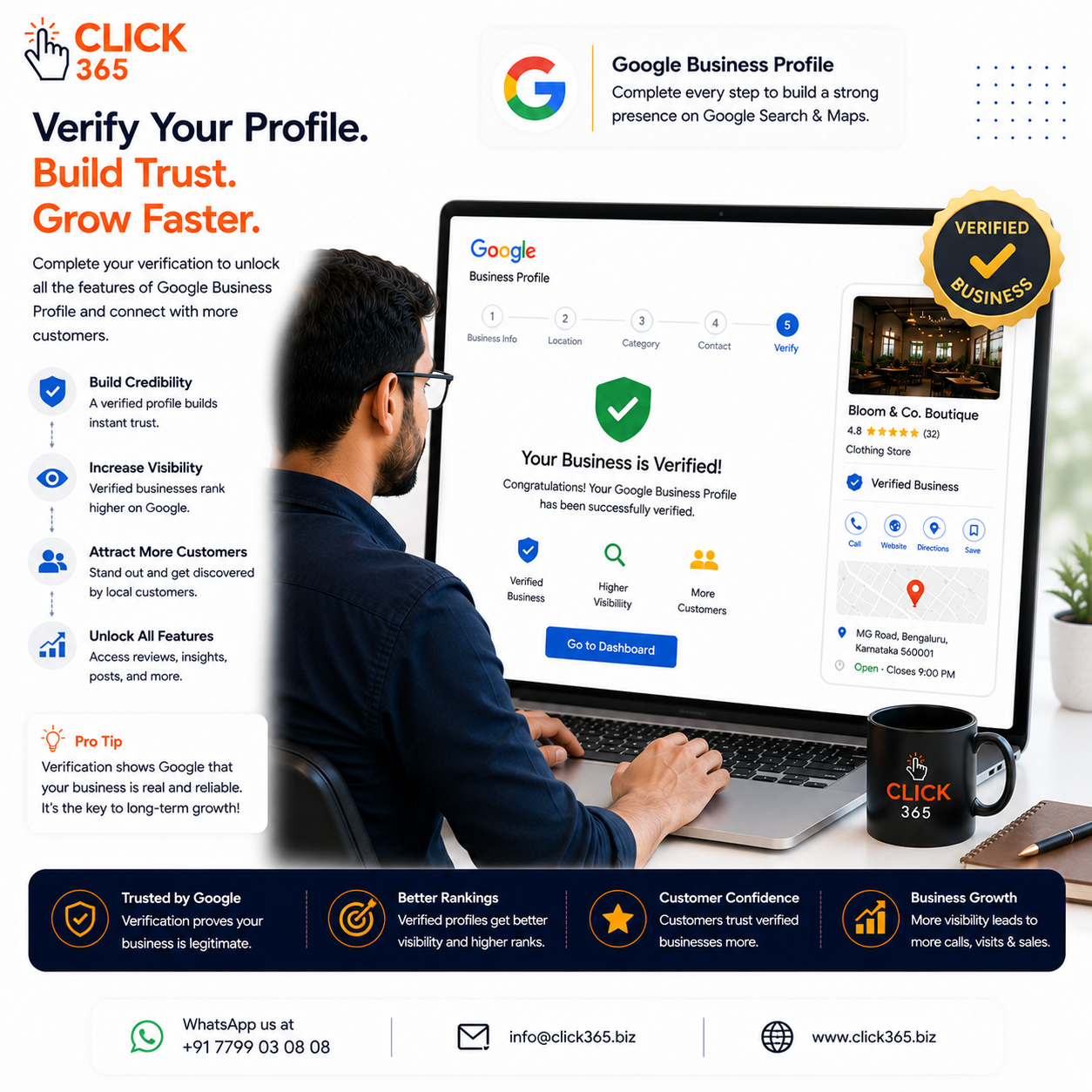
Once you've entered your business details, Google will ask you to verify that you own or manage the business.
The available verification methods may vary depending on your business and location. Google may offer one or more verification options.
Follow the instructions provided during the verification process and complete it as soon as possible.
Verification helps confirm that your business information is accurate and allows you to manage your Google Business Profile.
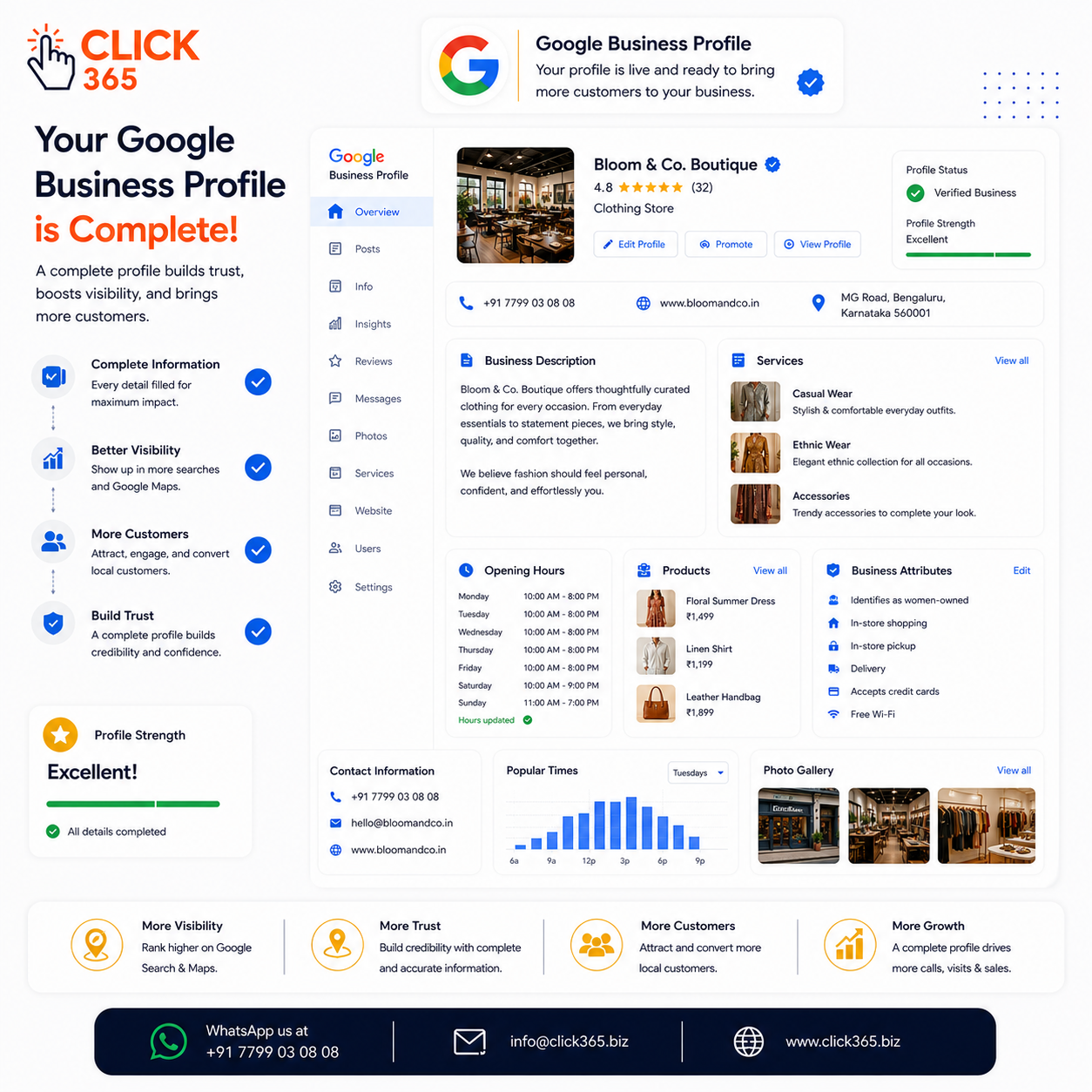
Step 7: Complete Every Section of Your Profile
After verification, don't stop there.
Many business owners leave important sections empty, making their profiles less useful for customers.
Complete your profile by adding:
- Business description
- Opening hours
- Services
- Products (if applicable)
- Business attributes
- Service areas
- Appointment or booking information (if applicable)
A complete profile gives customers the information they need to choose your business confidently.
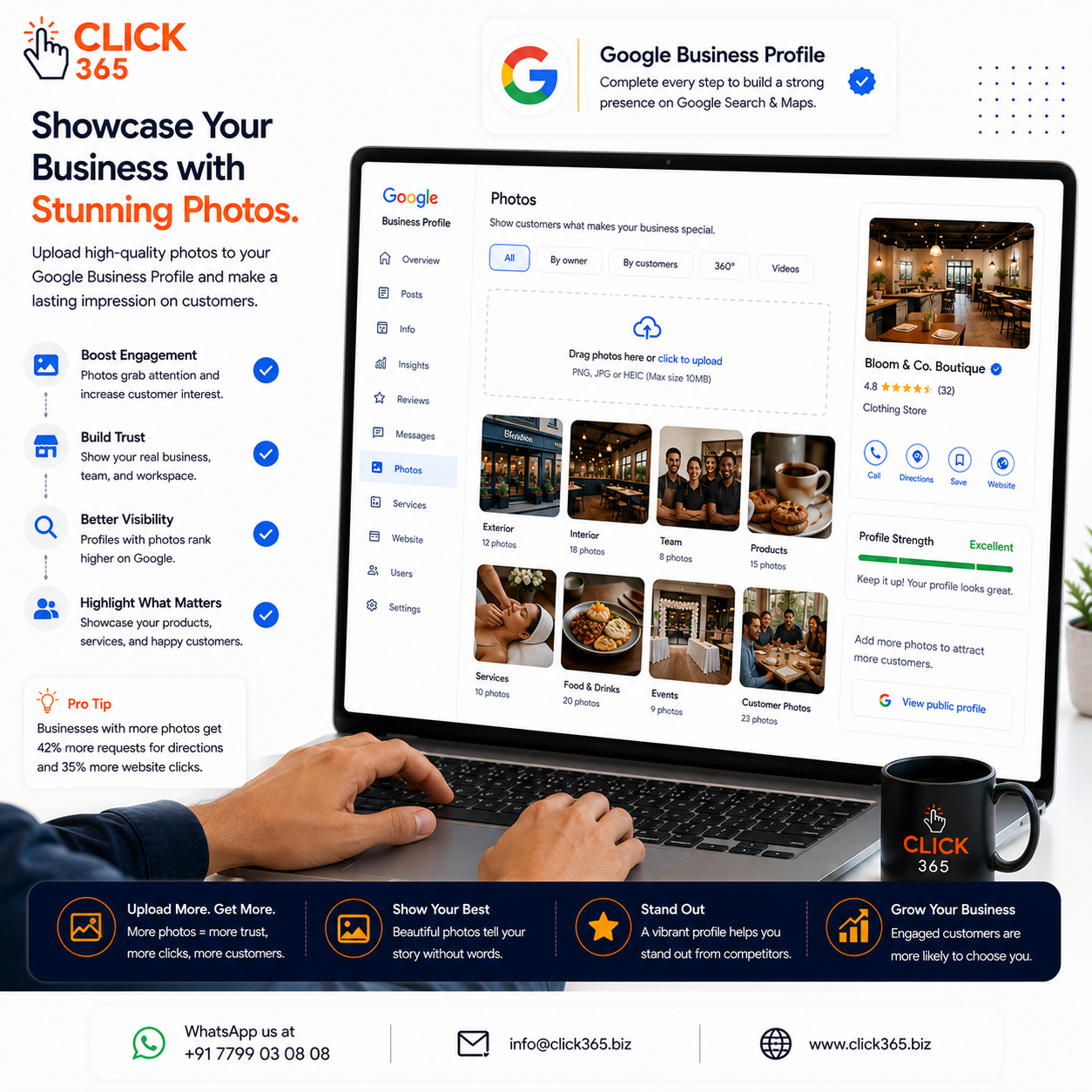
Step 8: Upload High-Quality Photos
Photos help customers understand your business before they visit.
Upload clear, recent, and authentic images of:
- Your storefront
- Interior
- Exterior
- Team members
- Products
- Services
- Workspace
- Customer areas
Avoid blurry, outdated, or heavily edited images.
Fresh photos help create a stronger first impression.
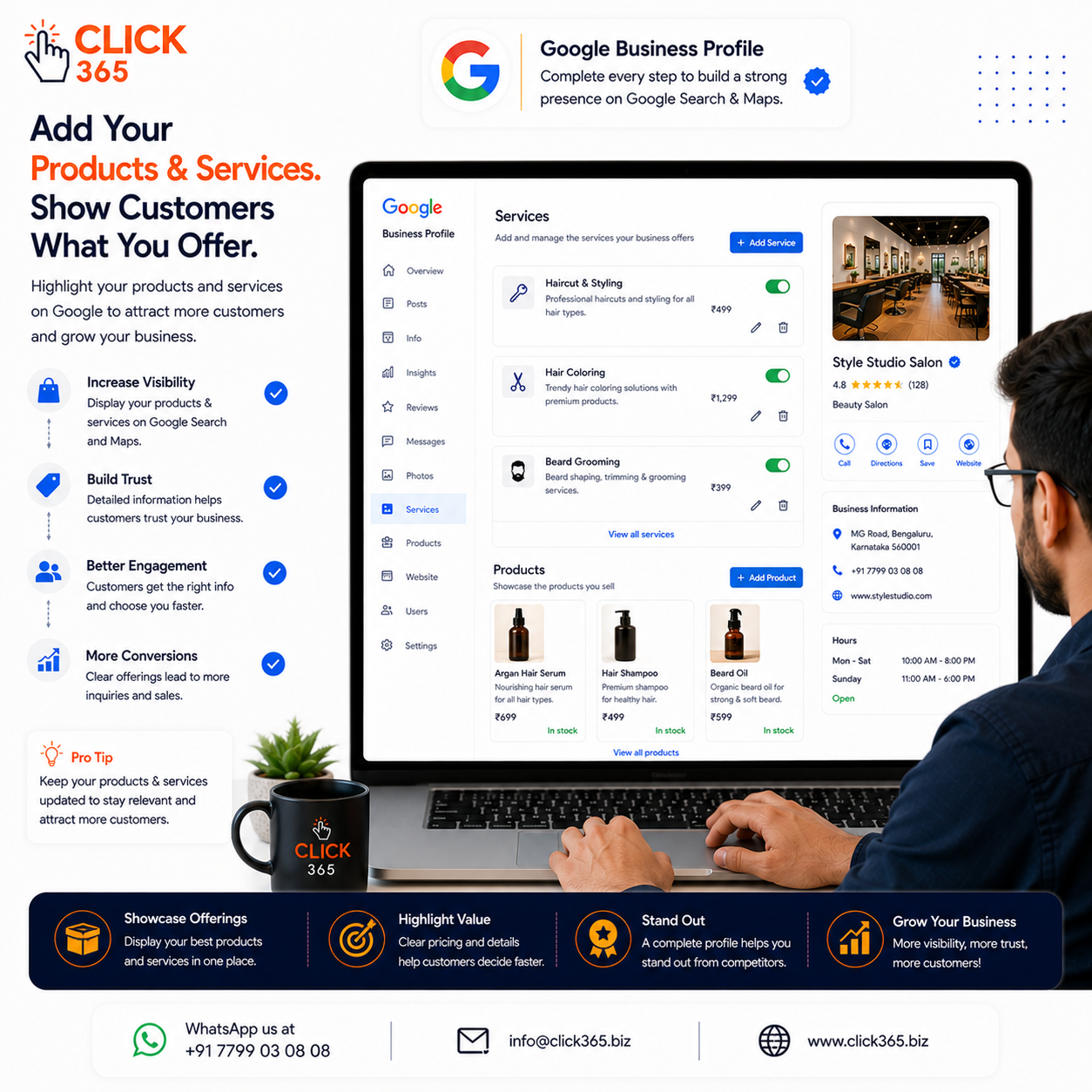
Step 9: Add Your Products and Services
Customers want to know exactly what you offer.
Use your Google Business Profile to clearly list your products or services.
Include:
- Service names
- Product categories
- Short descriptions
- Relevant pricing where appropriate
Keeping this information updated makes it easier for customers to understand your business before contacting you.
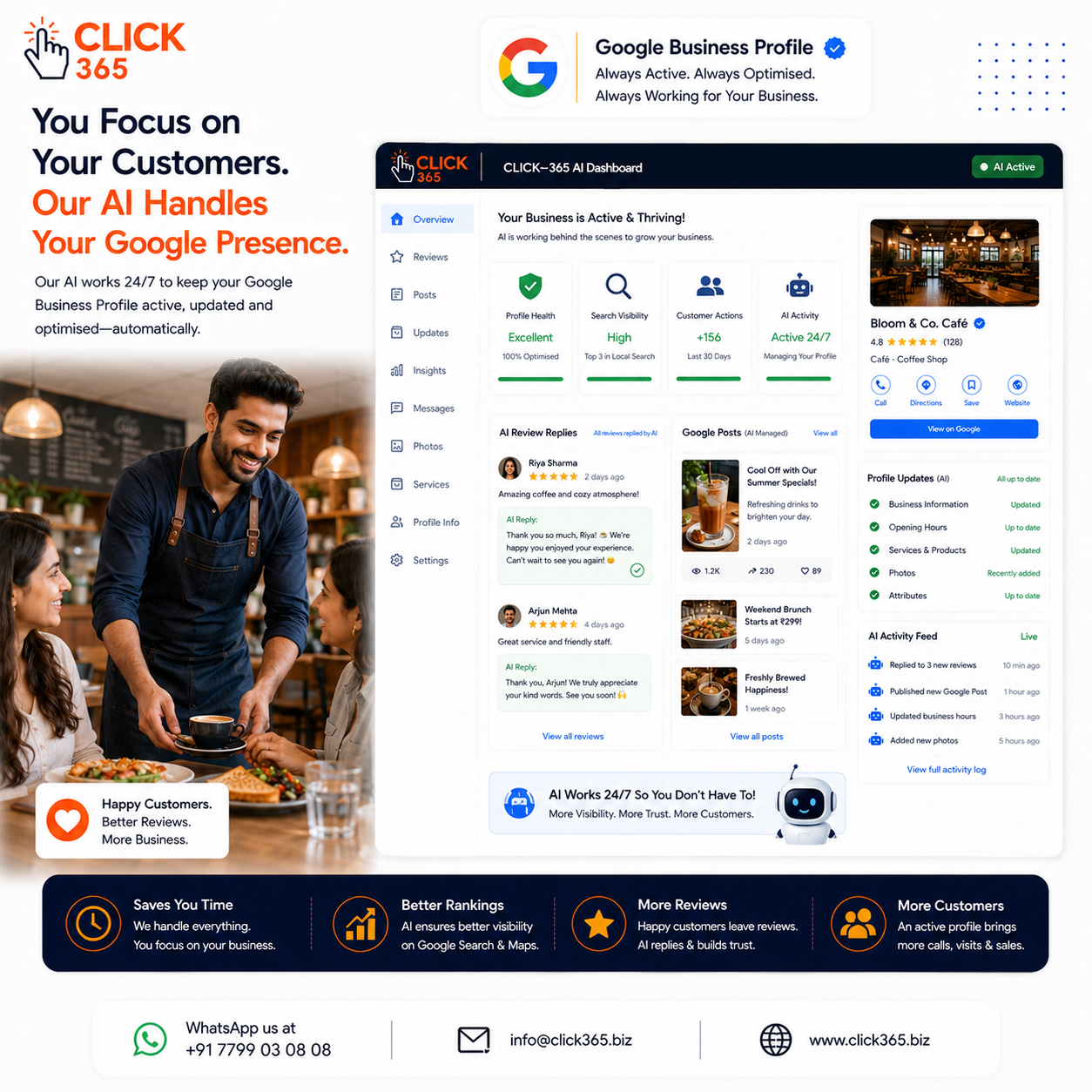
Step 10: Keep Your Profile Active
Creating your Google Business Profile is only the beginning.
To keep your profile useful and engaging, update it regularly by:
- Uploading new photos
- Responding to customer reviews
- Publishing Google Posts
- Updating business hours
- Adding new products or services
- Sharing business announcements
An active profile provides customers with up-to-date information and reflects an engaged business.
Consistency matters more than making occasional large updates.
Your Google Business Profile Setup Checklist
Before you finish, make sure you've completed everything below:
✅ Created your Google Business Profile
✅ Chosen the correct business category
✅ Added an accurate business address
✅ Entered your phone number and website
✅ Completed the verification process
✅ Filled in every profile section
✅ Uploaded high-quality photos
✅ Added your products or services
✅ Started responding to customer reviews
✅ Planned regular profile updates
Following this checklist gives your business a strong foundation for being discovered on Google Search and Google Maps.
Frequently Asked Questions
1. Is Google Business Profile free?
Yes. Google Business Profile is a free tool that allows businesses to manage how they appear on Google Search and Google Maps.
2. How long does business verification take?
Verification times vary depending on the method available for your business. Follow the instructions provided during setup and allow time for Google to complete the process.
3. Can I update my business information after verification?
Yes. You can update details such as your business hours, services, contact information, photos, and other profile information whenever needed.
4. What happens if I don't keep my profile updated?
Outdated information can confuse customers and create a poor experience. Regular updates help ensure your profile remains accurate and useful.
5. Do I need a website to create a Google Business Profile?
No. While having a website is beneficial, you can still create and manage a Google Business Profile without one.
6. Can CLICK-365 manage my Google Business Profile after it's created?
Yes. CLICK-365 helps businesses manage their Google Business Profile with AI-powered review replies, regular Google Posts, profile management, Smart QR Codes and Smart Links for collecting genuine customer feedback, and automated review-to-social sharing. It's designed to keep your profile active with minimal effort from your side.
Conclusion
Creating your Google Business Profile is one of the most important steps you can take to build your online presence. But creating it is only the beginning. Keeping your profile complete, accurate, and active helps customers find your business, trust your brand, and choose you over competitors.